I’ve been tinkering on a project that’s been both challenging and rewarding: building a native iOS app in Swift to control my KEF speakers. It started with a simple need — a clearer view of what’s playing — but quickly turned into a deep dive into debugging, APIs, and SwiftUI. Here I’ll share what I learned and the moments that made it worthwhile.
The motivation: Neither the Tidal iOS app nor the official KEF app supports landscape mode; they only show the current track in portrait. I wanted to see what’s playing while my iPhone sits on a stand or lies on the table. The speakers expose a simple (though still annoying) HTTP API on the local network, with no authentication or authorisation required.
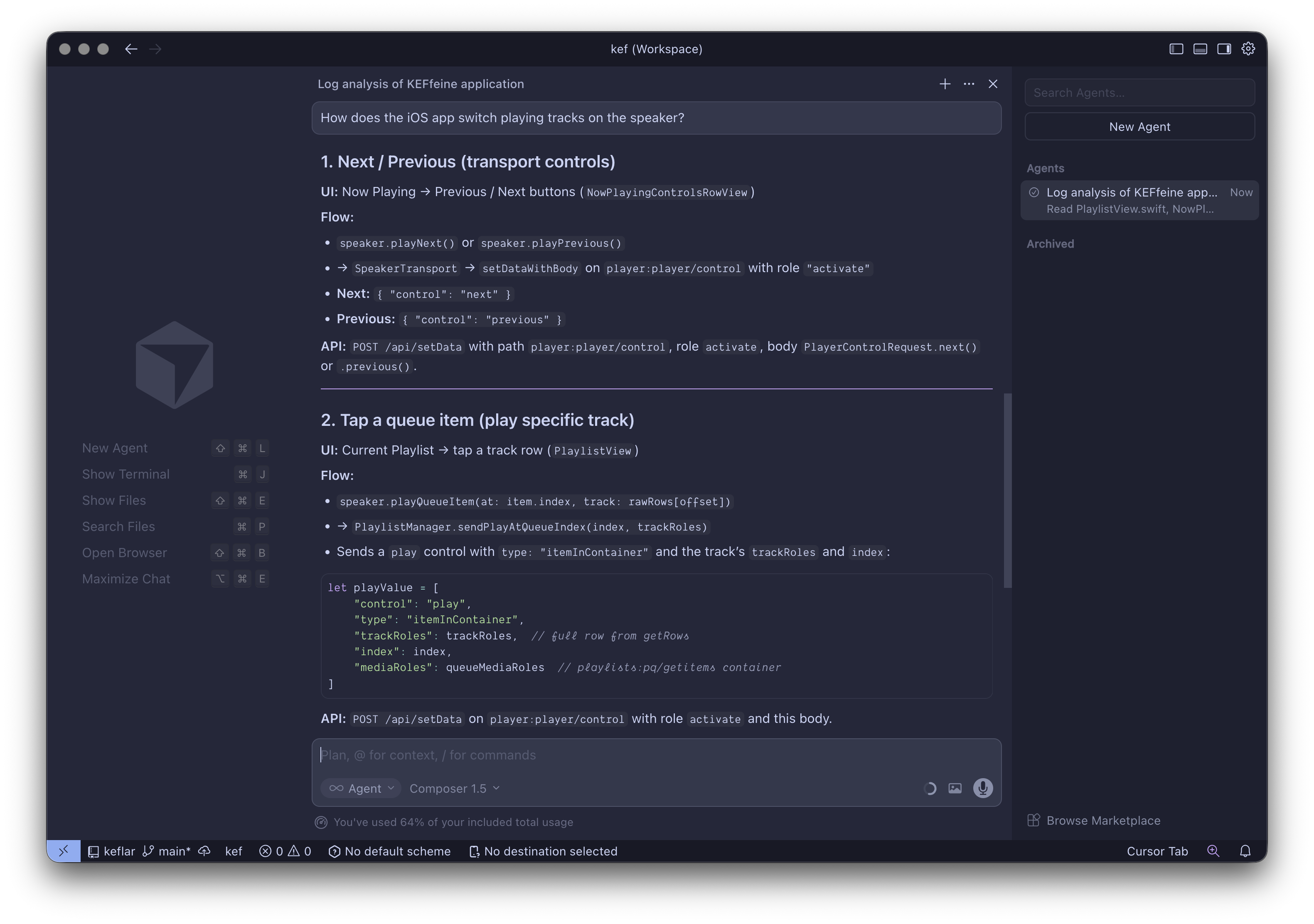
I’ve just submitted keffeine to the App Store and put together a rough website at keffeine.com. I did most of it with Cursor and Lovable — barely writing any code by hand. First, here’s the result:
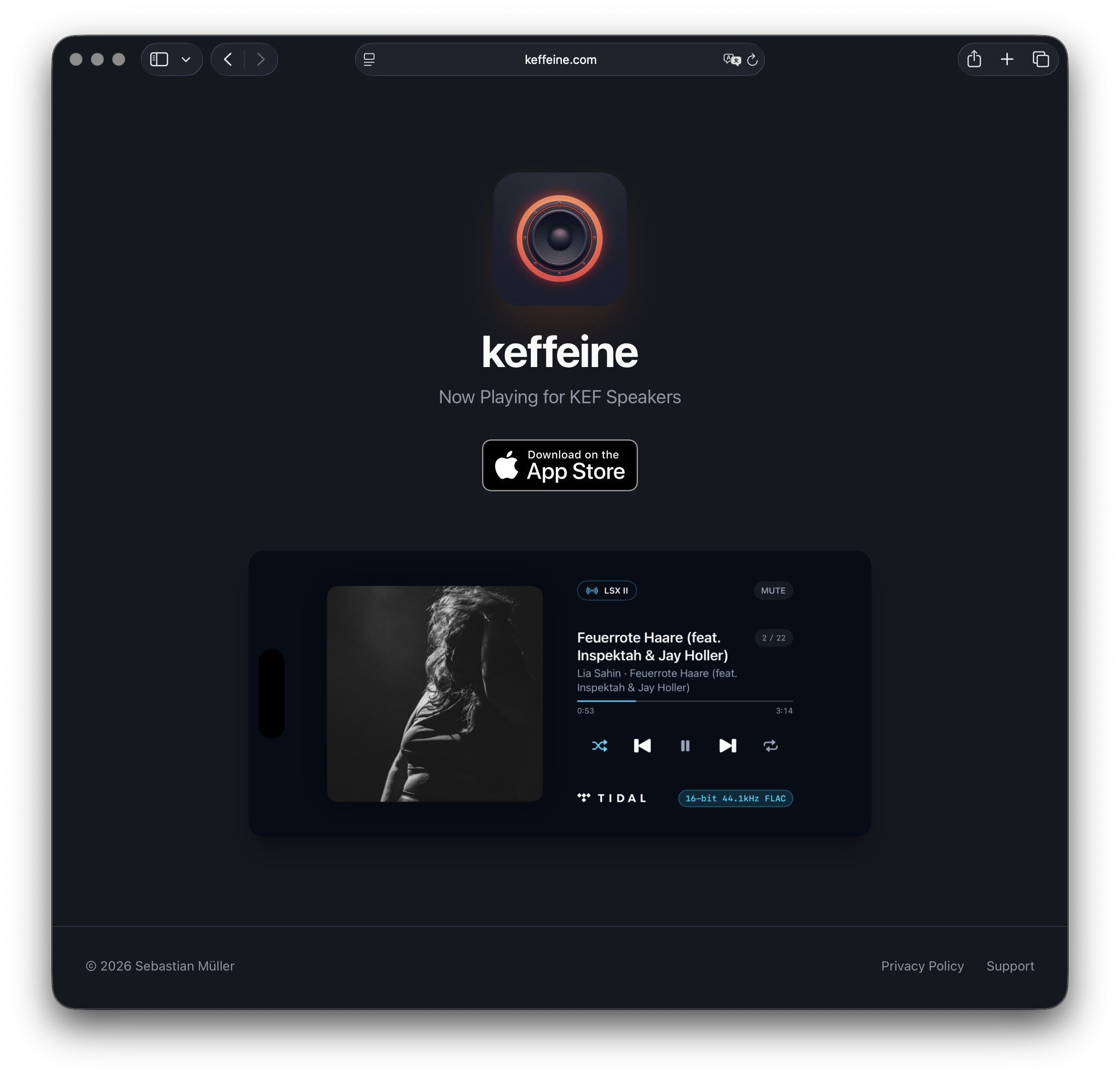
A nice side note: The cover in the screenshots is a photo I took, which Lia Şahin used for her album — and now it flows back into this app via Tidal’s API. Supporting each other’s art like that is what makes these projects worthwhile for me. But back to the journey …
The Idea & Creative Process
I want to publish a native iOS application and use Cursor to write most of the Swift and SwiftUI code for me; of course I will do code reviews, give detailed instructions via prompts, and correct direction whenever needed. I’d never written a single line of Swift before; I barely remember Objective-C from the early days of iOS development, and I didn’t know the current ecosystem until this project.
In addition to Cursor, I wanted to evaluate another AI code generation service: Lovable. The already mentioned website is done fully with Lovable via prompting; it’s just a small marketing website, and I didn’t touch any code — even for hosting. It’s all on Lovable with a custom domain.
Visual Prototyping
To get a visual prototype quickly, I used Lovable to create mockups of a “NowPlaying companion application” and collected them on a website — everything in React and clickable as a visual prototype.
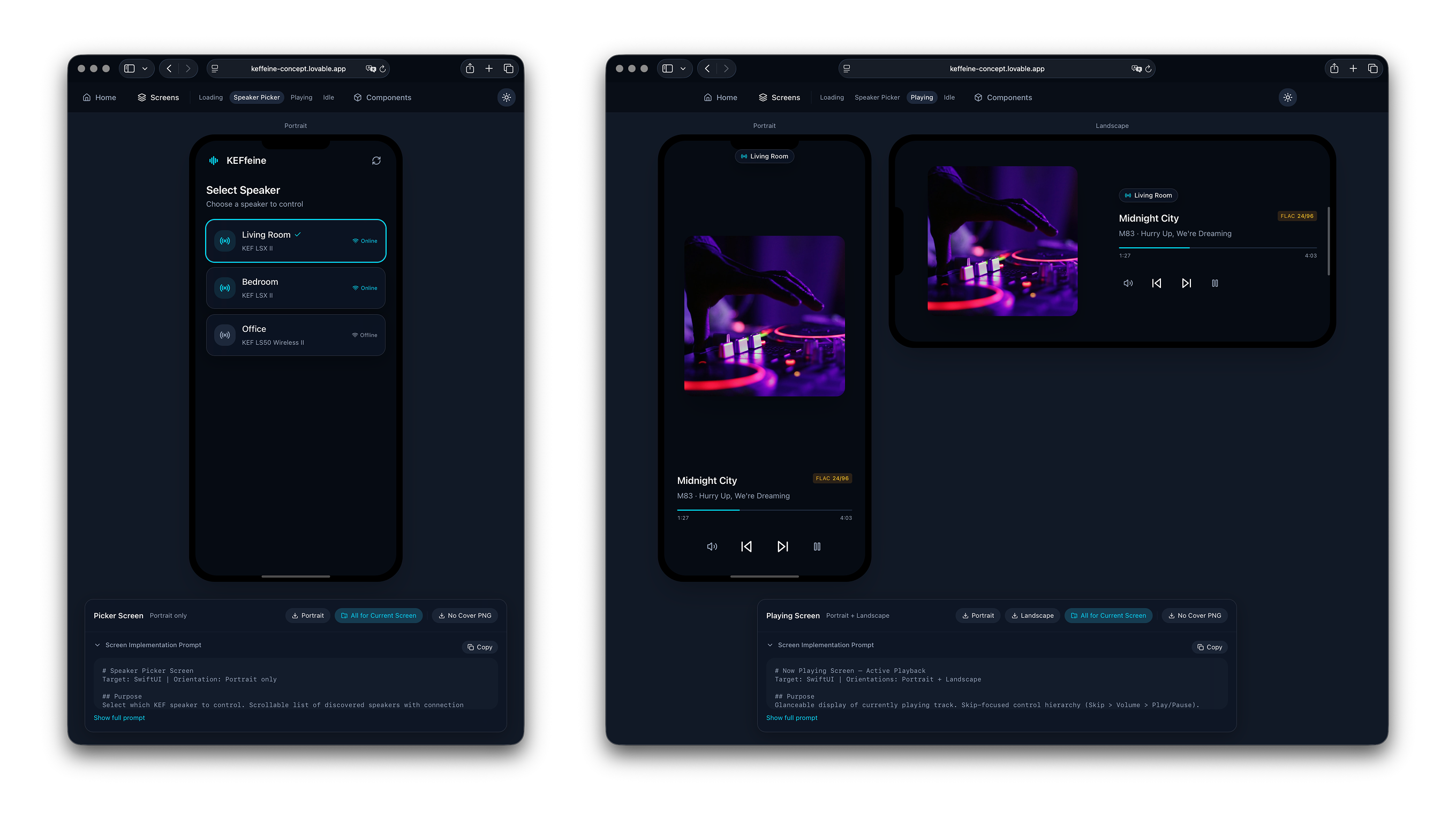
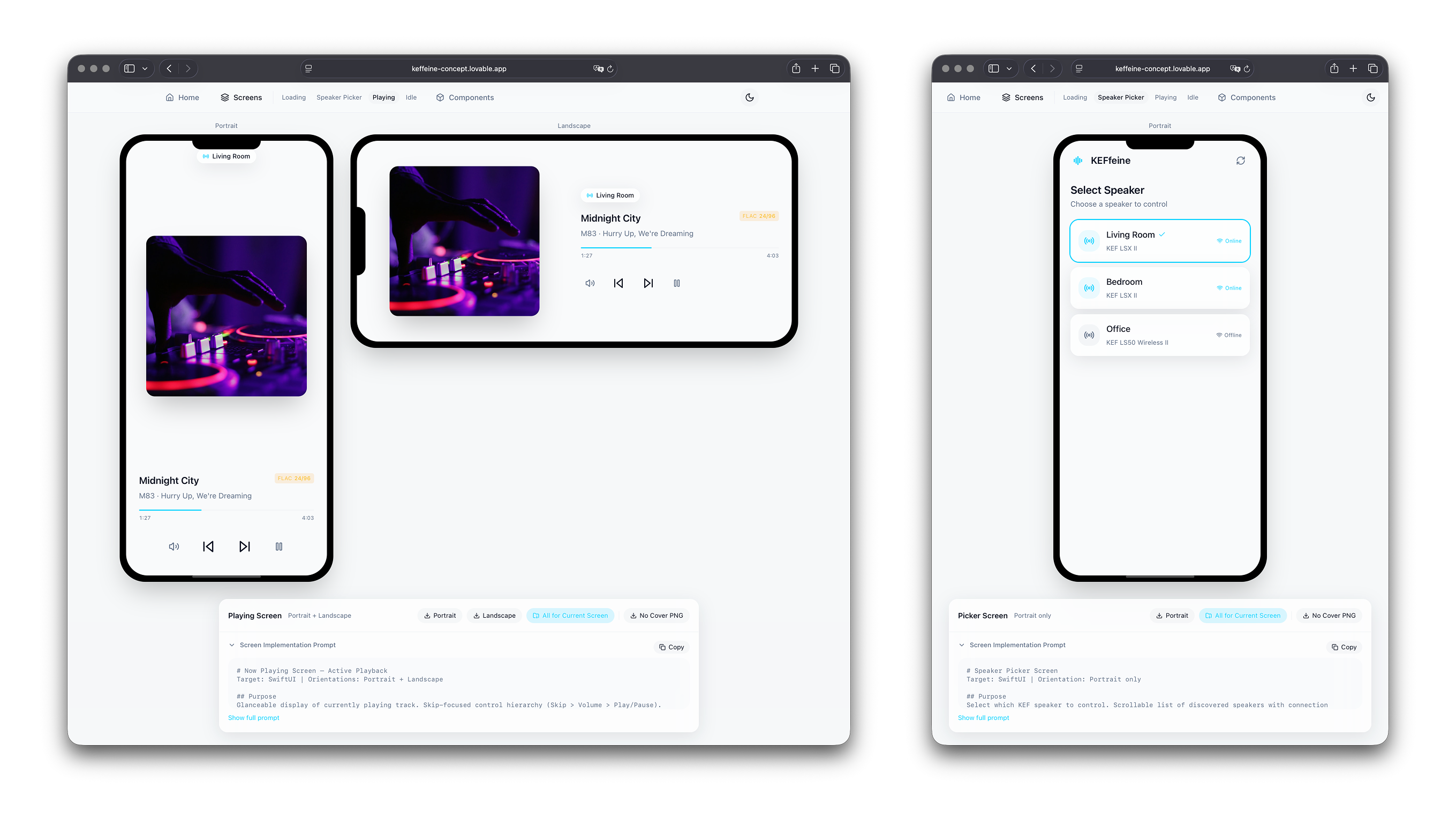
The concept is available at: https://keffeine-concept.lovable.app/ and of course, having a light & dark mode is a quick thing, if you don’t need to implement it yourself.
One of the first big learnings was using AI to pass information from one LLM to the other. With all visual prototyping done via Lovable, of course Lovable can also describe the important details of the UI components for Cursor. The second iteration of the concept introduced some Handover Prompts for every component.
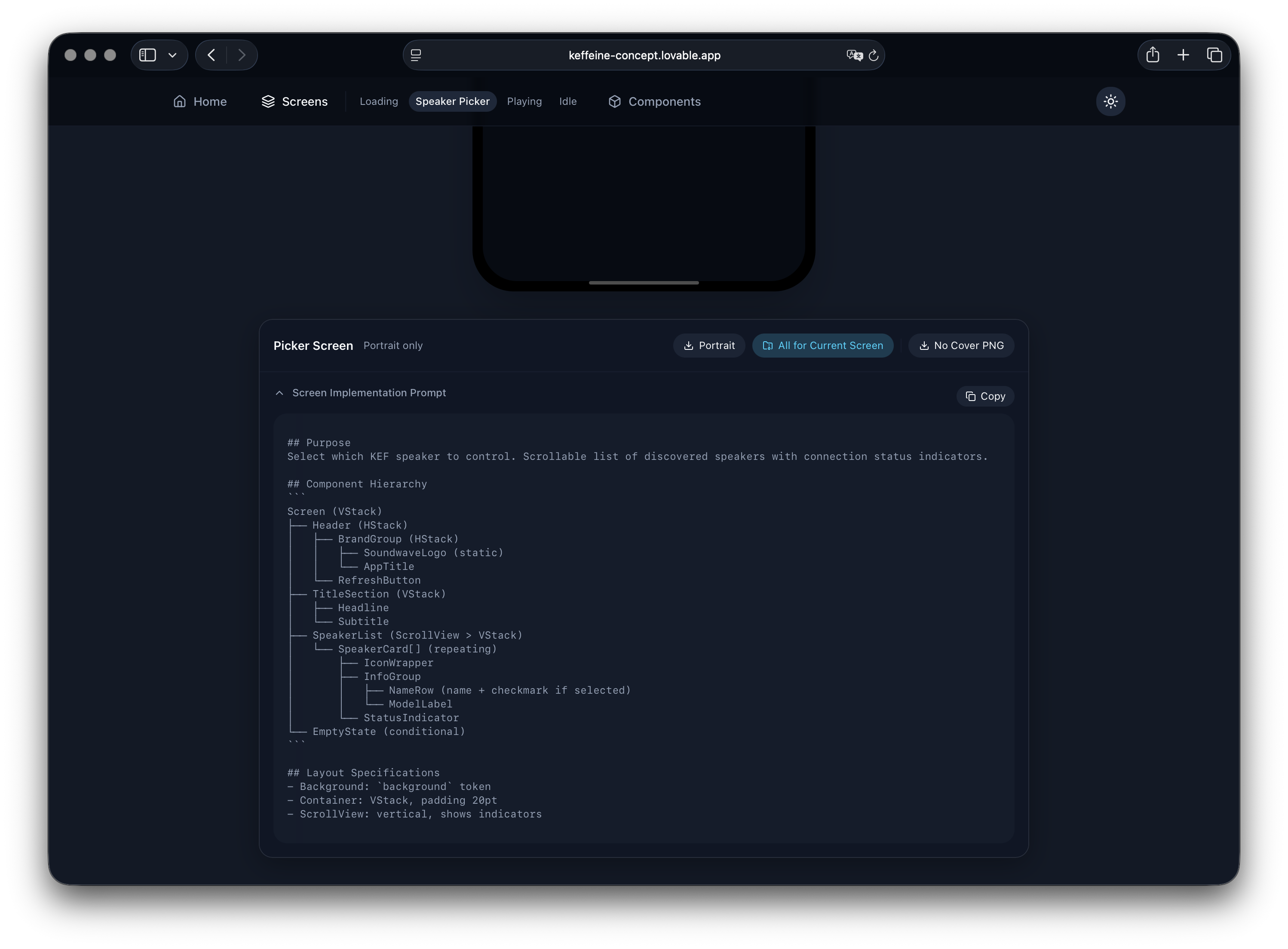
Of course, Lovable can already optimise the specification of the UI components for the implementation in Swift and use the language accordingly:
## Purpose
Select which KEF speaker to control. Scrollable list of discovered speakers with connection status indicators.

## Component Hierarchy

Screen (VStack)
├── Header (HStack)
│   ├── BrandGroup (HStack)
│   │   ├── SoundwaveLogo (static)
│   │   └── AppTitle
│   └── RefreshButton
├── TitleSection (VStack)
│   ├── Headline
│   └── Subtitle
The second big (re-)learning is also related to this: You need to know what to do, in order to task AI with it. A simple “Get it done” is rarely leading to desirable results. Tasking Lovable to “add a Download button and create an in-memory zip archive with all the components as png (pre-rendered in a canvas) and markdown files” will result in the most simple way to download all of the specifications for Cursor next …
The Coding & What to implement?
Now that Lovable generated all the relevant UI components and specifications, it’s time to figure out how to implement all of this. And what even “all of this” means, as there is no official API documentation for the KEF speakers available.
There exists an official KEF Connect application for iOS. The application has all relevant features and luckily uses a simple HTTP connection to the KEF speaker without any authentication or authorisation, so it just requires looking at the traffic to get an understanding of the API. A great application on macOS for this is Proxyman.
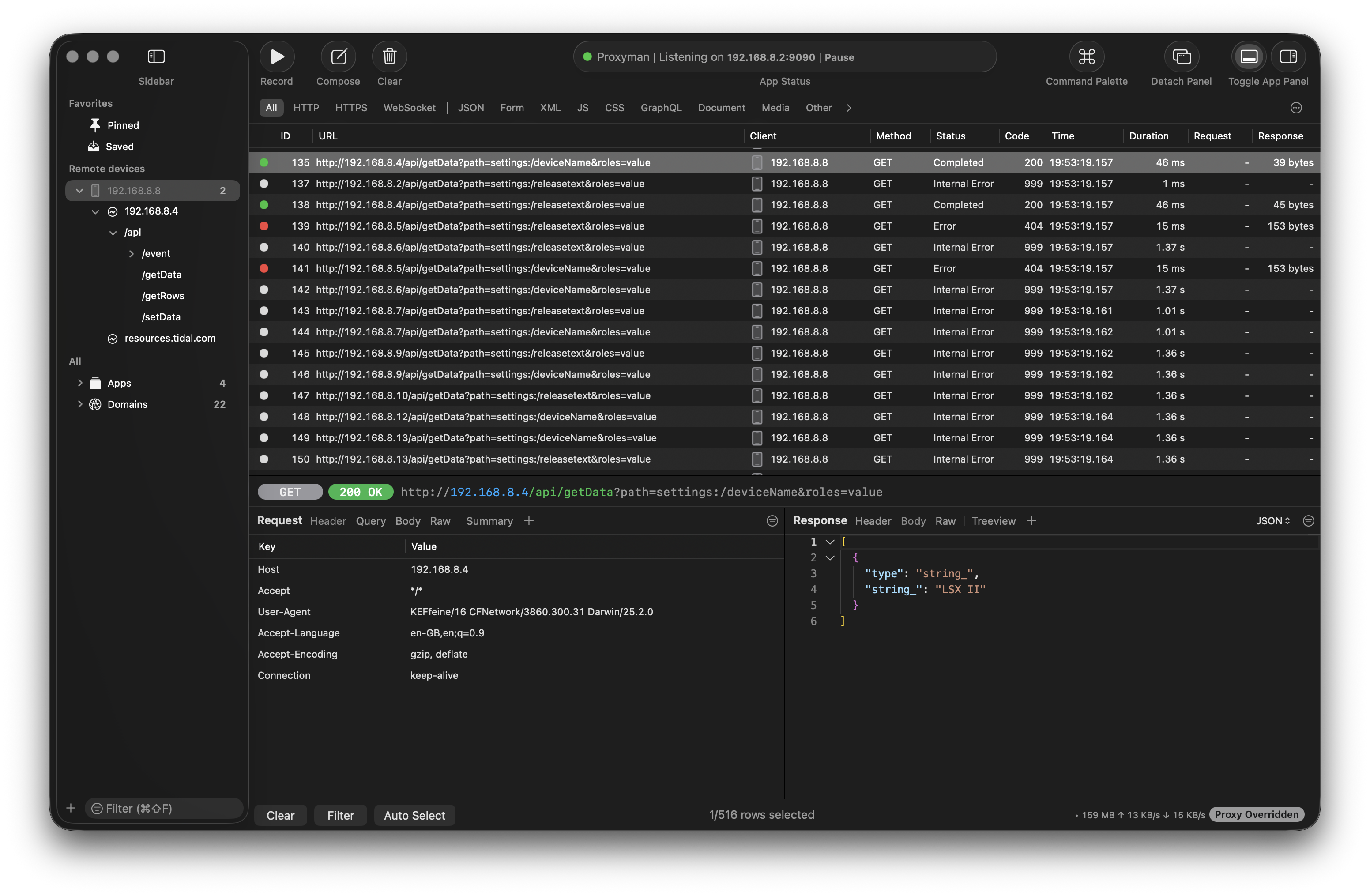
A paid Proxyman license (or via Setapp.com) will enable MCP support for the HTTP proxy and enable easy access for tools like Cursor. This was a mind-blowing experience for me and changed the process of understanding the API pattern fundamentally.
So, next I configured the iOS device to use the Proxyman server so I can intercept all the HTTP communication and start learning about the patterns.
API Design & Traffic Logs
With the proxy configuration in place, it was time to spin up the official KEF Connect app and explore the features I wanted — how they work with the speaker on my local network.
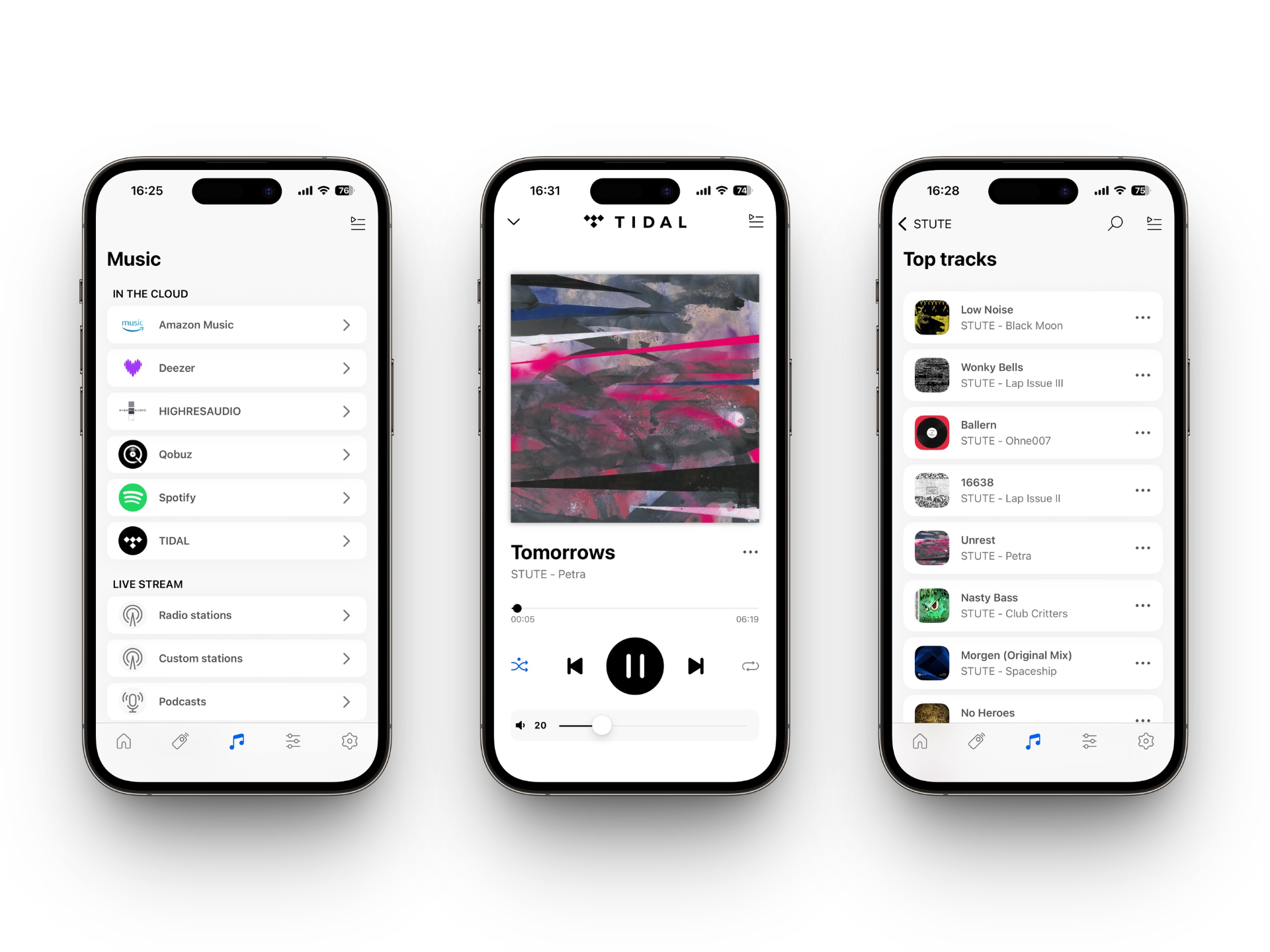
With some logs created in Proxyman, it was as simple as asking Cursor to use the MCP to identify what song is currently playing on the KEF speaker or how the API for switching tracks works.
Using this approach, it was quite easy to gain a good understanding of the public API of my speakers; even without any official documentation.
This was another great (re-)learning: We shall use AI to speed up a lot of processes, especially data-heavy ones. But an AI companion can never be a replacement for the knowledge itself.
Collecting more Data
Besides the NowPlaying information, the KEF Connect application also enables access to streaming services configured on the speaker itself. In order to understand the internals of the APIs better, I signed up for Tidal, Deezer, Amazon Music, and Qobuz. They all are integrated into the KEF speakers and the more example requests I can see, the easier I can identify the pattern.
After signing up for trials to all the services and exploring the native integration, it became quite obvious they all work significantly differently! The speaker itself wraps service-related API calls in a custom request/response mode in addition to this. So to normalise this, it requires identifying the integration patterns of every service API, plus understanding the KEF wrapper itself.
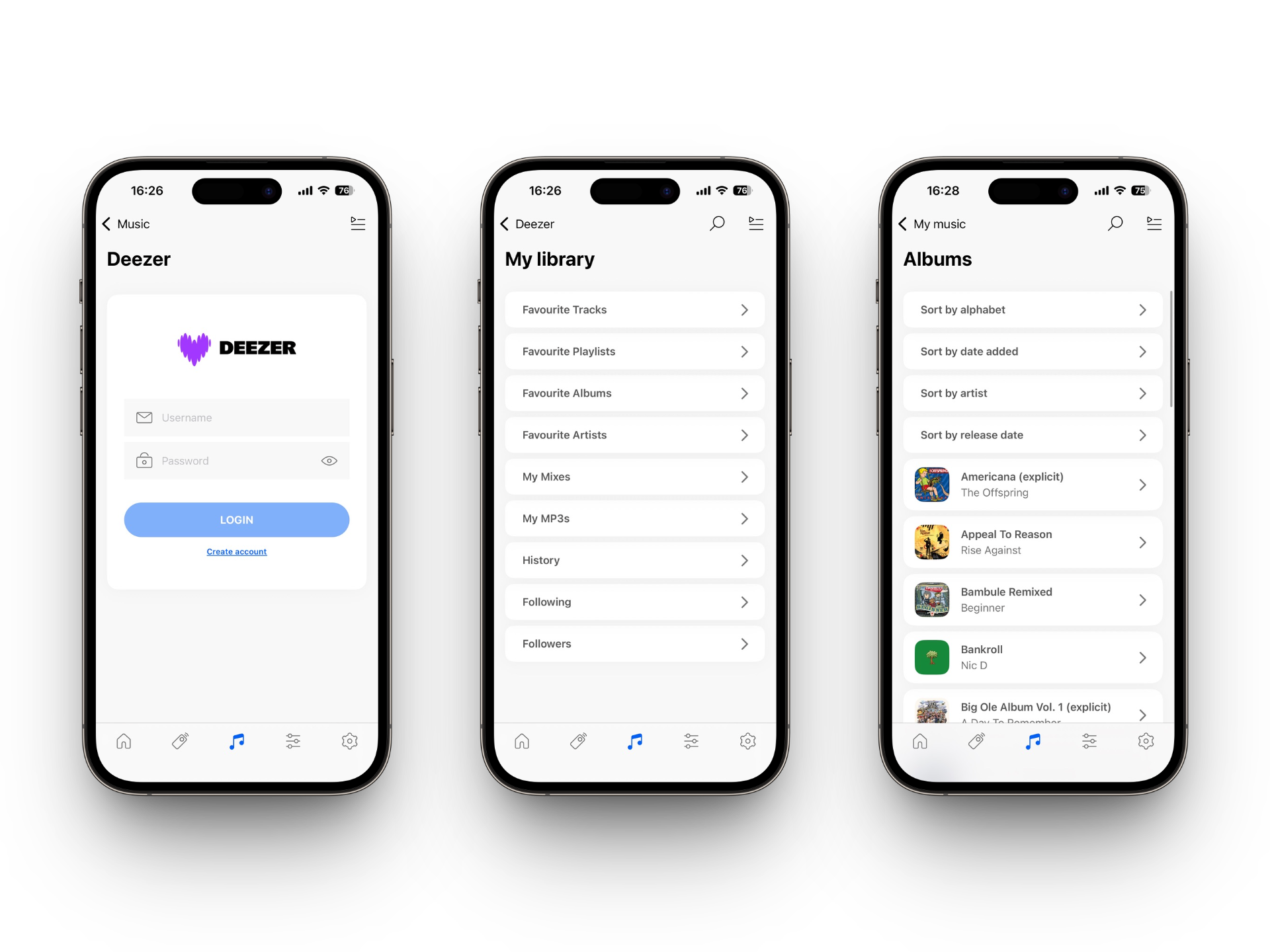
With all of that complexity, I decided to focus on Tidal and Deezer for the catalogue integration; as I use Tidal personally and the Deezer API integration on the KEF speaker had the least-horrible experience …
Proxyman with MCP is like automating the manual work you’d do with Wireshark and pattern recognition — but without exporting logs, normalising requests and responses, or digging through tons of traffic. You just expose access via MCP from your coding agent to the HTTP proxy. How convenient is that?
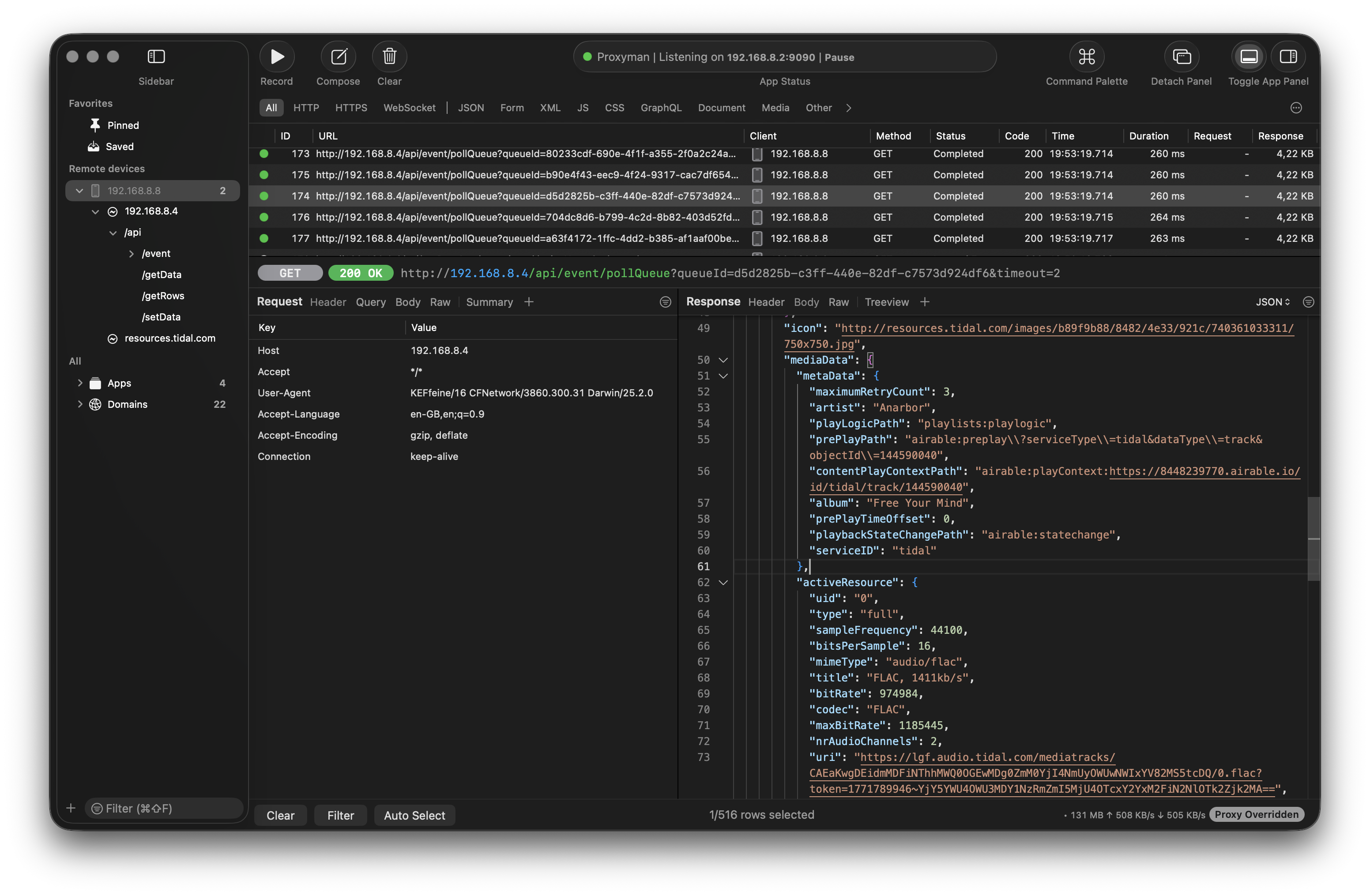
All of this was also a nice learning journey into Cursor skills and commands. It requires orchestrating specific tasks over and over. Of course, there’s a lot of trial and error involved, so things need to be repetitive and deliver consistent results.
The KEF Speaker API
While digging through the traffic logs, I also explored existing libraries by others on the topic. Most prominently I want to thank SwiftKEF, for which I initially contributed a Pull-Request while doing all of this. As quite common, a simple contribution turned into being its own library; this is how keflar was created. A further great resource is pykefcontrol.
If you own a KEF speaker, dig into these resources to learn more; it was a great joy! On a high-level, this is how the speaker’s API is working:
Connecting to a KEF Speaker
In my setup, the KEF speaker has an IP address of 192.168.8.4 and is using port 80 to expose the HTTP API. You can even open this up in your local web browse, see some basic information, configure the WiFi or do a firmware update.
In addition to this, the KEF speaker exposes an HTTP JSON API. There is no WebSocket or push; every interaction is request–response.
The speaker keeps its own state (volume, queue, now-playing, etc.) and updates it when you send commands or when something else changes (e.g. another app, the remote). For this, the API exposes this as a tree of paths, e.g. player:player/data for now-playing, player:volume for volume, settings:/mediaPlayer/mute for mute. There exists an API to /getData for a path and for /setData of course.
There are two layers. The device layer is the speaker itself: volume, mute, source, play mode, queue, and what’s playing. The streaming layer is Airable: Tidal, Deezer, Amazon Music and more. The speaker acts as a middleman: it talks to the Airable proxy on the internet and exposes that content to you through the same HTTP API. So you only ever talk to the speaker; the speaker talks to Airable when needed.
Using this Airable API proxy, the KEF speaker is given access to the configured streaming service library; this is how the keffeine application an easily integrate with the streaming catalog without worrying about the user’s authentication.
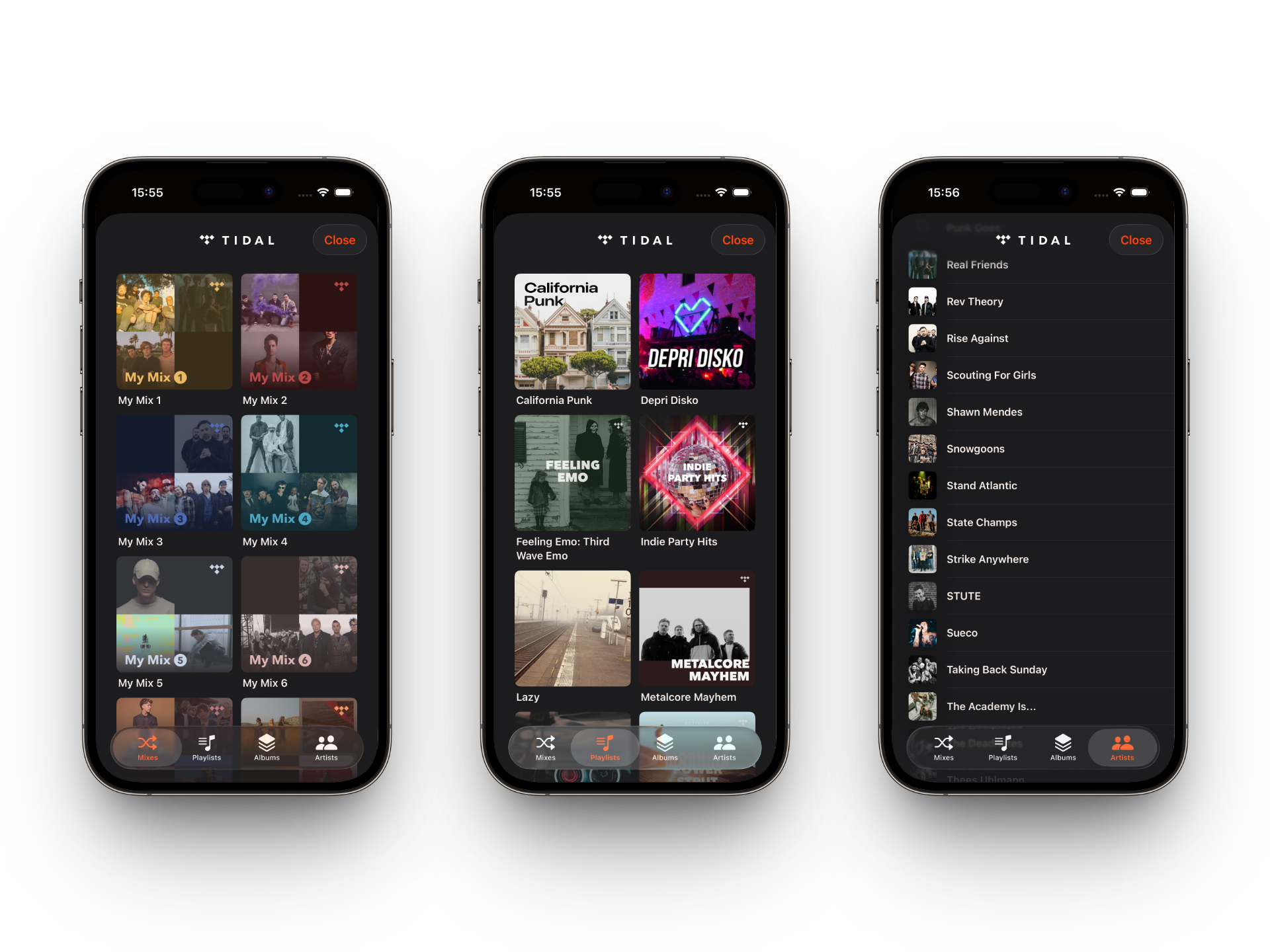
To recap: Lovable for visual prototyping and handover prompts, Proxyman MCP for discovering the API without digging through traffic logs, and Cursor to turn those specs into Swift. That’s the workflow that got me from zero Swift knowledge to a finished app in a few days. The keffeine iOS application is now available on the App Store! 🎉